
Apple Search Ads ROAS: See Which Keywords Actually Pay for Themselves
Connect Apple Search Ads + RevenueCat to see real ROAS by keyword, campaign, and country.
Appeeky · Jul 19, 2026
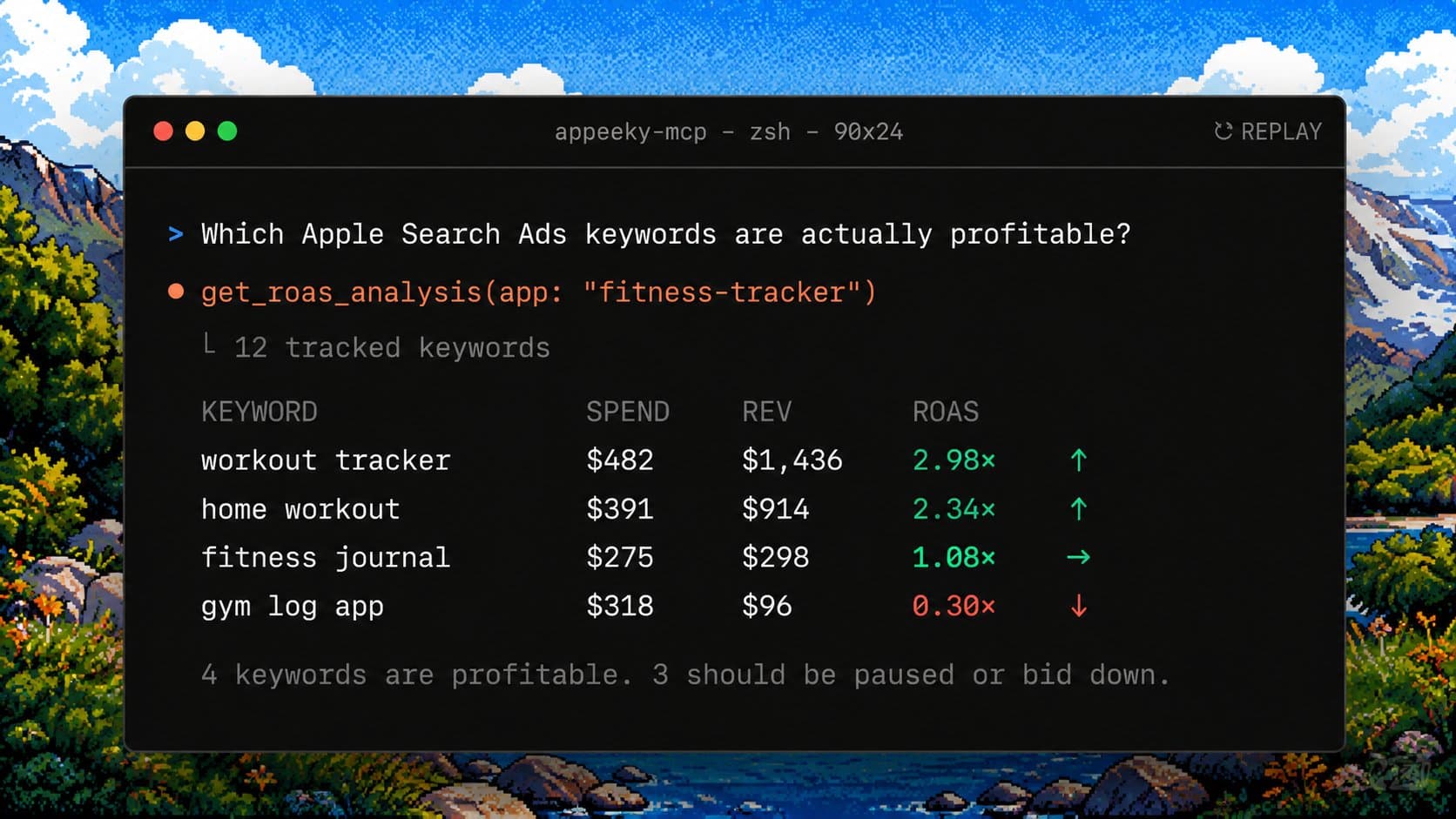
Apple Search Ads ROAS: See Which Keywords Actually Pay for Themselves
Apple Search Ads tells you how much you spent and how many people tapped your ad. RevenueCat tells you who subscribed and how much they paid. Appeeky connects both — in the web dashboard, Appeeky Desktop on your Mac, or via MCP. With Codex, Claude, or Cursor, you can see real ROAS by keyword, campaign, and country, and know where to scale or cut spend.
The problem: installs lie
A keyword can look great in Apple Search Ads:
- Low cost per tap
- High install rate
- Plenty of downloads
But downloads are not revenue. Some keywords bring tire-kickers. Others bring subscribers who renew for months.
Without joining ad spend to subscription revenue, you're flying blind. You might scale a keyword that burns budget, or pause one that quietly funds your growth.
ROAS (Return on Ad Spend) fixes that:
ROAS = Revenue from attributed users ÷ Ad spend
- ROAS above 1.0 → you're earning more than you spent (profit on that row)
- ROAS below 1.0 → you're losing money on that spend
That's the number worth watching, not installs alone.
How Appeeky makes this work
Appeeky pulls two data sources you already use:
| Source | What it contributes |
|---|---|
| Apple Search Ads | Spend, taps, impressions, installs — by campaign, ad group, keyword, and country |
| RevenueCat | Subscription revenue from users Apple attributed to your Search Ads |
RevenueCat receives Apple Search Ads attribution when Apple AdServices is enabled in RevenueCat → Integrations. That links each paying customer back to the keyword and campaign that brought them in.
Appeeky joins spend from Apple with revenue from RevenueCat and calculates profit and ROAS in one table — no spreadsheets, no manual exports. The same join runs in the cloud (web) and on your Mac (desktop local cache).
It also works with our MCP. Manage your ads with Claude, Codex, or Cursor — or call our REST API directly.
What you get in the web dashboard
Open Dashboard → Ads Intelligence (Apple tab) after connecting both integrations in the web app.
Profitability by country
See spend, installs, revenue, and ROAS for each storefront country — the same view indie developers use to decide where paid acquisition is working.
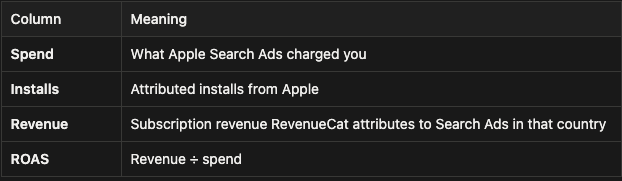
Green ROAS means the country is paying for itself. Red means you're underwater.
Drill down: campaigns, ad groups, keywords
Switch the level to Campaigns, Ad groups, or Keywords to find exactly which rows deserve more budget — and which should be paused or bid down.
Keyword-level ROAS is where the real optimization happens. A country can look fine on average while one keyword eats your margin.
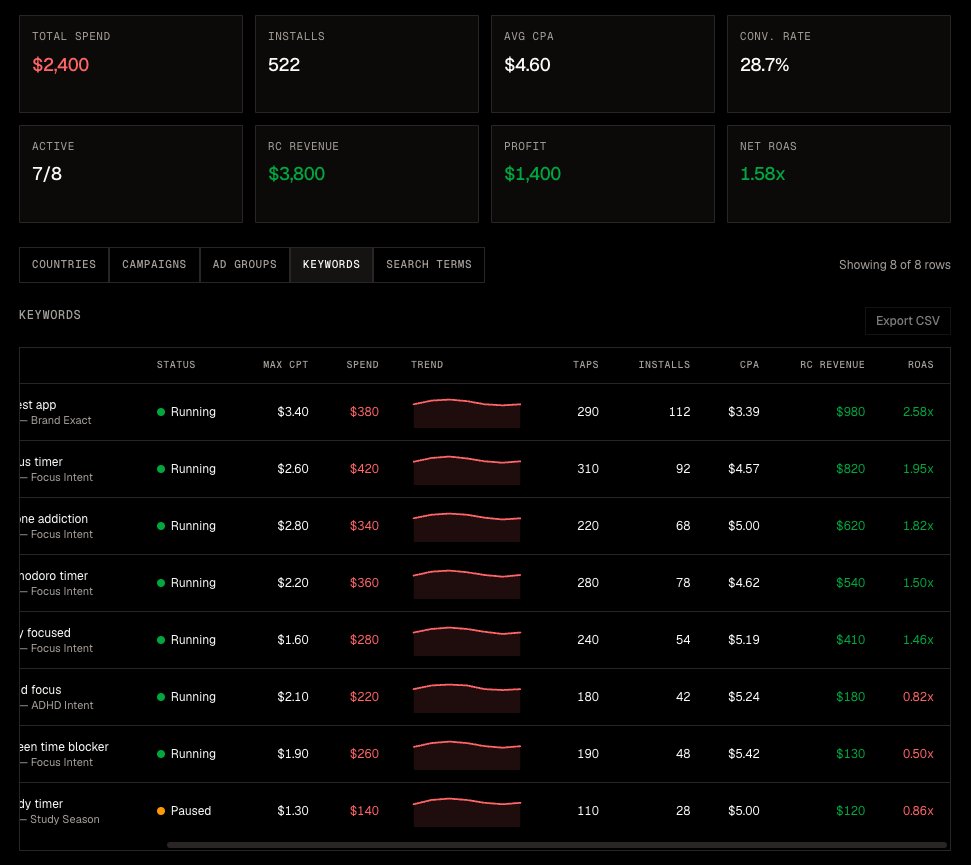
Apple Ads Playbook
The Apple Ads Playbook panel checks that your stack is wired correctly and surfaces actionable recommendations:
- Scale — high-ROAS keywords with enough data to justify raising bids or budget
- Kill — keywords spending money with weak or zero ROAS
- Review gate — countries where your App Store rating is too low to scale paid spend safely
Think of it as a weekly review checklist, not autopilot. You stay in control; Appeeky tells you what the data says.
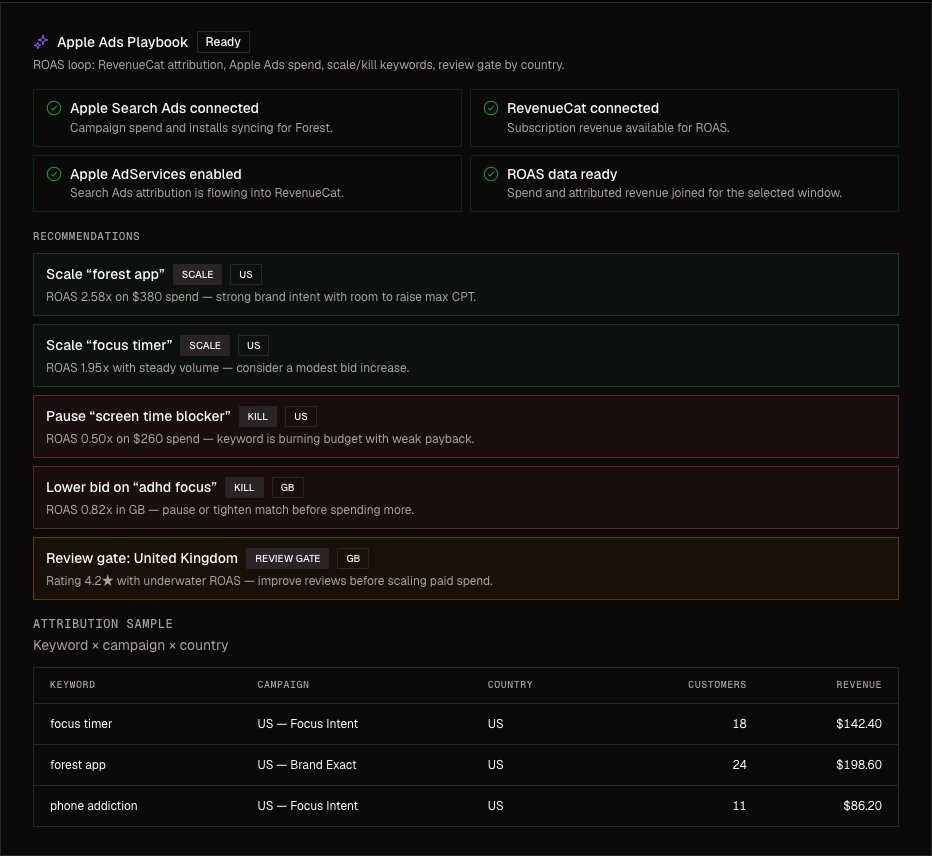
Run ROAS locally with Appeeky Desktop
Prefer to keep credentials on your Mac and work from a local cache? Appeeky Desktop gives you the same ROAS workflow without sending every query through the cloud.
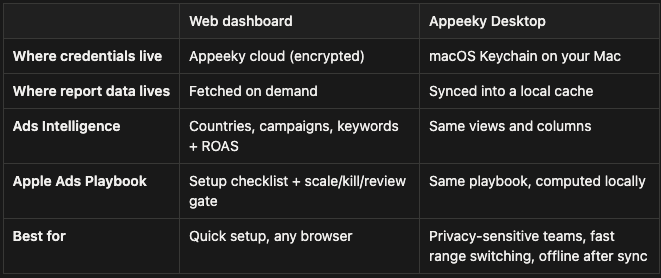
Open Ads Intelligence in the sidebar after your first sync. You get the same drill-downs:
- Countries — spend, installs, RevenueCat revenue, ROAS by storefront
- Campaigns / ad groups / keywords — find scale candidates and budget leaks
- Apple Ads Playbook — confirm integrations, attribution, and weekly recommendations
ROAS math is the same as the web app. Switching date ranges reads from your local cache, so reviews feel instant once data is synced.
Desktop setup (about 3 minutes)
- Download Appeeky for Mac and sign in with your Appeeky account
- Settings → Integrations — add your Apple Search Ads API credentials and RevenueCat secret key (
sk_…) - Enable Apple AdServices in RevenueCat → Integrations (same step as web — without it, revenue and ROAS stay empty)
- Run Sync for Apple Search Ads and RevenueCat from Settings
- Open Ads Intelligence, pick your app, and choose a date range (14 days is a good default)
Credentials never leave your machine except to call Apple and RevenueCat directly during sync. You can still use the web dashboard with the same account.
How to use ROAS in practice
A simple weekly loop:
- Check Countries — which storefronts have ROAS above 1? Which are bleeding?
- Open Keywords — find winners (scale) and losers (pause or lower max CPT)
- Read Playbook recommendations — confirm your instincts against the data
- Check review gate — don't scale spend in countries where your rating is below 4.5★
Example decisions
| What you see | What it usually means | What to do |
|---|---|---|
| Keyword ROAS 3.0+, steady spend | Strong payer keyword | Consider raising max CPT or budget |
| Keyword ROAS 0.5, $50+ spend | Burning cash | Pause or move to exact match with lower bid |
| Country ROAS 2.0+, rating 4.6★ | Healthy market | Safe to test higher daily budget |
| Country ROAS high, rating 4.2★ | Revenue works but conversion may suffer | Fix reviews before scaling spend |
Appeeky does not change your bids automatically. You apply changes in Apple Search Ads (or via Appeeky's API if you build automation). The value is seeing the truth in one place — spend and revenue together.
Get started
Web
- Sign in to Appeeky
- Connect Apple Search Ads and RevenueCat in Settings
- Enable Apple AdServices in RevenueCat
- Open Ads Intelligence and run your first ROAS review
Desktop (local)
- Download Appeeky for Mac
- Add Apple Search Ads and RevenueCat in Settings → Integrations
- Enable Apple AdServices in RevenueCat
- Sync both sources, then open Ads Intelligence
MCP
- Grab your API key and connect to MCP
- Ask your agent
Questions or feedback? We'd love to hear how you're using ROAS to grow.
Appeeky — one workspace for App growth